Correlated Logs
The correlated_logs() function in stratapy is designed for creating side-by-side stratigraphic log plots, making it easy to visually correlate multiple logs, including a shared legend. It also has some optional features to customise the style and alignment of the logs:
Parameters
Required:
filesA list (or other iterable) of file paths to your stratigraphic data files. Each file will be loaded and plotted as a separate log.
Optional:
left_y_axis(bool, default: False) If True, a single y-axis will be created on the left side of the first log, shared by all logs. If False, each log will have its own y-axis.offsets(list of numbers, default: None) A list of numeric offsets to apply to the y-axis of each log. Useful for aligning logs that start at different depths or ages. The length must match the number of files.spine_distance(float, default: 30) The distance in points between the spines of adjacent logs whenleft_y_axisis True. This controls the horizontal spacing between the logs.fig_kwargs(dict, default: {}) A dictionary of keyword arguments to pass to matplotlib’splt.subplots()function when creating the figure and axes. This allows you to control the overall figure size, layout, and other properties.**kwargsAny additional keyword arguments are passed directly to theLogObject.plot()method orsp.load()function for each log (seestratapy.core.LogObject.plot()orstratapy.core.load()for full details). This allows you to control all aspects of the plot, such as display mode, legend options, font size, figure size, and more.
Examples
The examples below illustrate usage of a few combinations of parameters, but many more layouts can be achieved by combining the available options.
By default, a figure like the one below is created.
files = ['examples.multi_log_1.csv', 'examples.multi_log_2.csv', 'examples.multi_log_3.csv', 'examples.multi_log_4.csv', 'examples.multi_log_5.csv', 'examples.multi_log_6.csv']

# Call correlated_logs and pass any formatting parameters
panel = sp.correlated_logs(files, figsize=(20, 14), legend_columns=4)

# Save the figure
panel.save('my_figure.png')
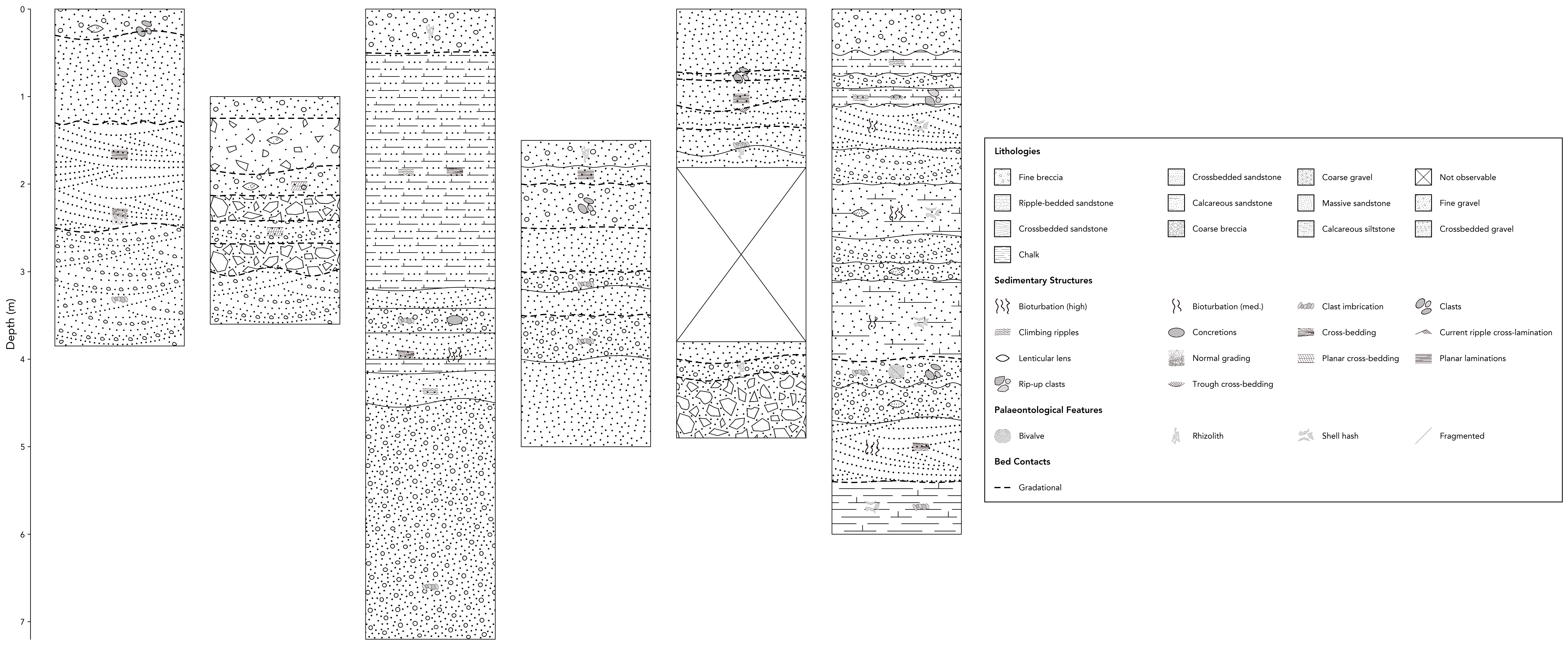
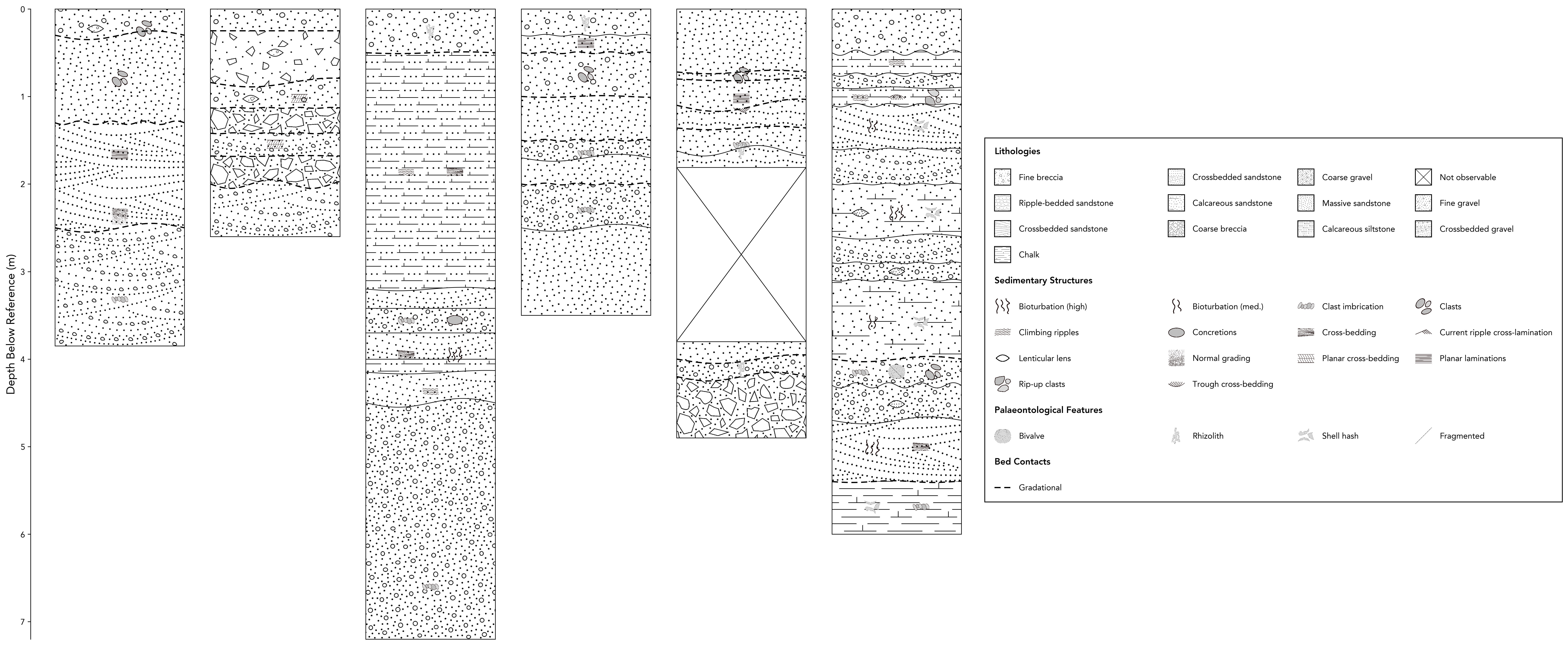
We can apply offsets to each log to align them as desired, for example, to account for different starting depths or to align specific units.
files = ['examples.multi_log_1.csv', 'examples.multi_log_2.csv', 'examples.multi_log_3.csv', 'examples.multi_log_4.csv', 'examples.multi_log_5.csv', 'examples.multi_log_6.csv']

# Manually aligning the logs, and changing the y-axis label accordingly
panel = sp.correlated_logs(files, figsize=(20, 14), legend_columns=4, offsets=[0, -1, 0, -1.5, 0, 0], y_label='Depth Below Reference (m)')
Tip
This function automatically provides a legend to encompass all logs, however, if you need more control over the legend or multi-figure plots, you can also use the stratapy.core.standalone_legend() function to create a standalone legend, or set legend=False in multi_fig() to prevent a legend from being created.
Return Value & Methods
correlated_logs() returns a MultiLogObject object, which contains the figure, axes, logs, and legend, as well as a convenient .save() method to save the figure to a file:
fig: The matplotlib figure objectaxes: List of axes for each loglogs: List ofLogObjectinstances for each logleg: The legend object.
You can call .save(filename) on the returned object to save the figure.
logs = sp.correlated_logs(files)
logs.save('my_figure.png')
Special Notes and Quirks
If
offsetsis provided, its length must match the number of files.All logs should have compatible y-axes (e.g., all in depth, all in age, or all in height).
The legend is shared and automatically includes all relevant entries from all logs.
By default, the display mode is set to ‘log’ for correlated logs, but you can override this with the
display_modekwarg.If you set
left_y_axis=True, all y-ticks and labels are removed from the individual logs and a single y-axis is placed on the left.All other formatting and style options are inherited from
LogObject.plot()orsp.load()and can be passed directly tocorrelated_logs()for convenience.